


Presenting a polished and unique look is key to a successful Bigo Live broadcast. The app gives you a studio's worth of visual tools to help you achieve this, all accessible with a few taps.
This guide will walk you through the three main effects panels: Beauty, Makeup, and Filter. You will learn how to make precise adjustments to your appearance, apply full makeup styles in an instant, and set the perfect mood with color filters.
Following these steps will give you the ability to create a custom on-camera look that makes you feel confident and keeps your audience watching.
Applying Filters and Effects: A Step-by-Step Guide
The effects menu is powerful and layered, allowing for a high degree of customization. Let's break down each section.
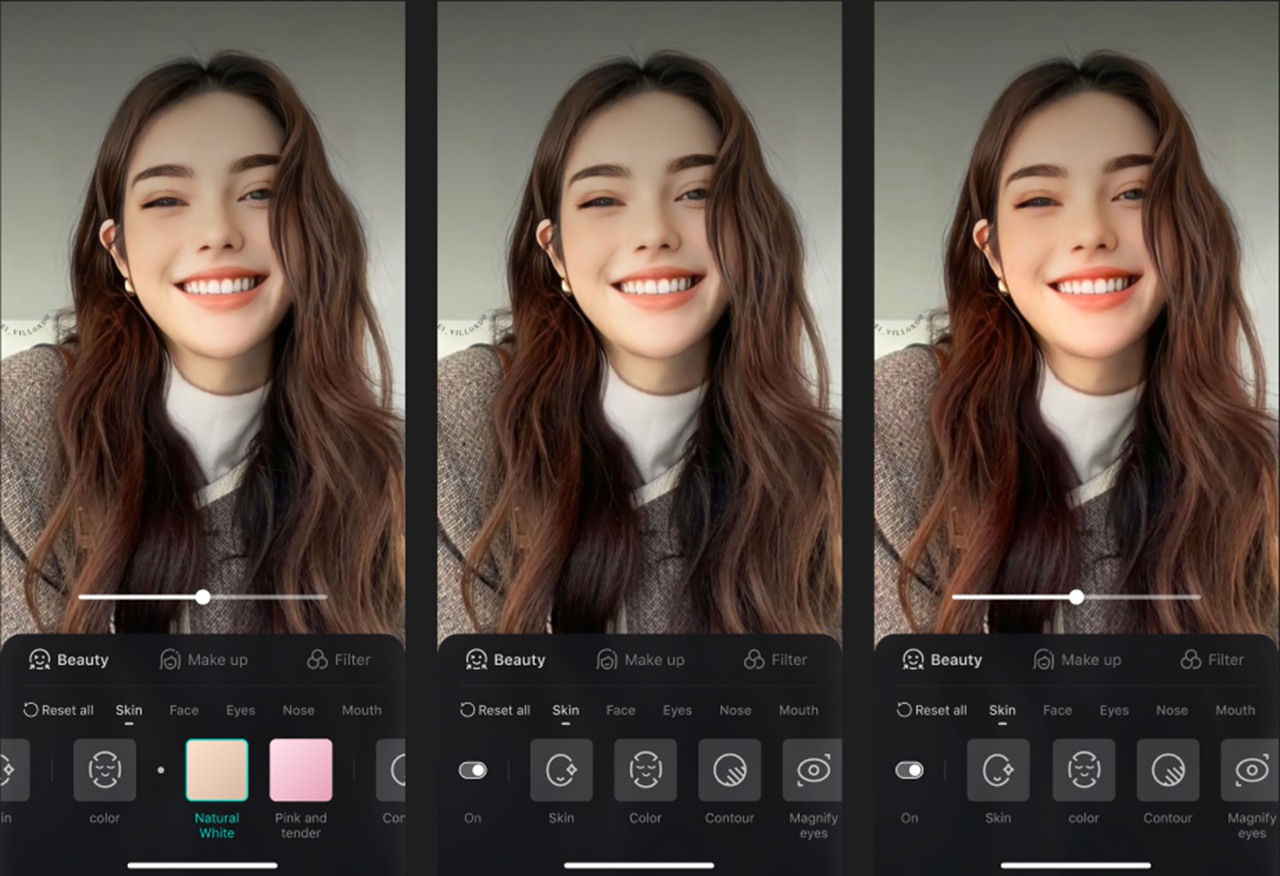
1. The Beauty Tab: Refine Every Detail
This panel is for making specific adjustments to your face and body. It offers granular control over your appearance.
(1) Open the Menu: Tap the effects icon and select the "Beauty" tab.
(2) Facial Adjustments: Choose from sub-categories like Skin, Face Shape, Eye Shape, Nose, and Mouth. Under Skin, for example, you can use tools like "3D Lighting" for better definition, "Clarity" to sharpen your video, or "Slim face" for a subtle contour.
(3) Body Adjustments: Select the "Body" sub-category to modify your physique in the camera's view. Options include "Long legs," "Slim body," "Slim waist," and "Straight shoulders."
(4) Control the Intensity: After selecting any of these tools, a slider will appear. Drag it to increase or decrease the strength of the effect until it looks just right.
(5) Start Over: If you make too many changes, the "Reset" button will remove all active Beauty settings.
2. The Makeup Tab: One-Tap Style
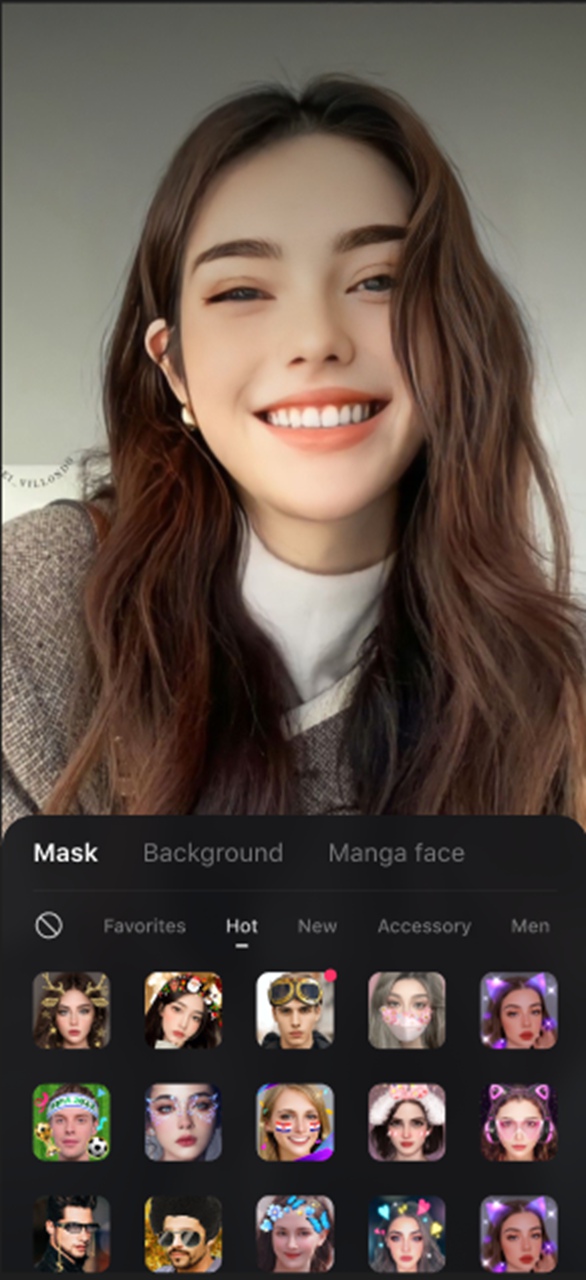
This section applies complete, pre-designed makeup looks to your face.
(1) Access the Looks: Select the "Makeup" tab from the main menu.
(2) Browse by Style: The makeup looks are organized into thematic categories. You can find collections like "New," "Fashion," "Ins Style," and "Spicy Girl."
(3) Apply a Look: Tap on a thumbnail like "Pink Sugar" or "Smoky Lace" to apply it.
(4) Download New Effects: Some newer looks may show a small download icon. Tap them once to download them; they will then be available to use anytime.
(5) Adjust Opacity: The on-screen slider controls the intensity of the entire makeup look, allowing you to make it either bold or subtle.
3. The Filter Tab: Create an Atmosphere
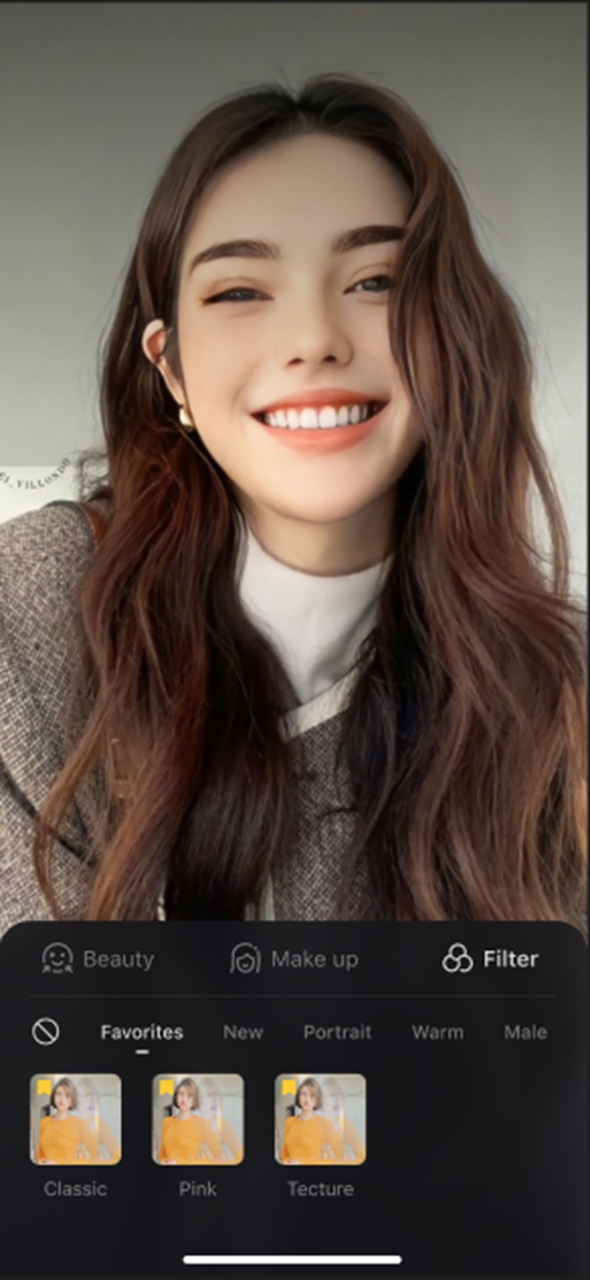
Filters change the overall color and tone of your broadcast, much like a photo filter.
(1) Open the Filter Menu: Choose the "Filter" tab.
(2) Find Your Vibe: Look through categories tailored to different moods and subjects, such as "High Saturation," "Portrait," "Male," and "Warm Tone."
(3) Select and Preview: Tap on a filter like "Sakura" from the "Male" section or "Tan" from the "High Saturation" section to see the effect instantly. A slider will let you adjust how strong the color grading is.
(4) Remove the Filter: To return to your camera's natural color, tap the "prohibit" symbol (Ø) at the beginning of the list.
Frequently Asked Questions (FAQ)
Q1: Can I combine effects from all three tabs?
A: Yes. You can use the Beauty tools to adjust your features, add a complete Makeup look, and then apply a Filter over everything to create a truly unique style.
Q2: Why do some effects have a download arrow on them?
A: To keep the app size manageable, some newer or more complex effects need to be downloaded before their first use. This is a quick, one-time action.
Q3: Are there effects designed specifically for male users?
A: Yes. Both the Makeup and Filter tabs have a dedicated "Male" category with styles and color tones designed to be less cosmetic and more complementary for male broadcasters.
Q4: Will using the "Body" feature look unnatural?
A: The key is to use the intensity slider carefully. Small, subtle adjustments will look much more natural than setting the slider to its maximum level.
Conclusion
You are now fully prepared to use the rich set of visual tools Bigo Live offers. By combining the precise controls of the Beauty tab, the stylish looks in the Makeup tab, and the atmospheric tones of the Filter tab, you can craft a signature appearance for your broadcasts.
Experiment with these features to find a look that expresses your personality and helps you connect with your audience.
