


Want to make your Bigo Live streams more lively and engaging? Hosting a Multi-Guest room is one of the best ways to do it.
Instead of a solo broadcast, you can bring friends and viewers directly into your stream to chat, play games, and share the spotlight.
This guide provides a detailed look at how to set up, host, and manage a successful Multi-Guest broadcast. You'll learn about all the pre-broadcast settings, the powerful in-room tools at your disposal, and how to create an interactive experience that keeps people coming back.
How to Host a Multi-Guest Room
Hosting a Multi-Guest room gives you control over the broadcast and who participates.
- Choose Your Room Type:From the screen where you prepare to go live, you will see several broadcast options at the bottom, such as "Voice Live" or "Multi-guest Live." Select the option that best fits a group format, typically "Voice Live" for audio-centric rooms or a standard " Multi-guest Live" with video seats.
- Set the Number of Seats:Before starting, look for an option to select the number of guest seats. As seen in the images, you can typically choose between 4, 6, 9, or 12 total spots in your room. This determines how many people can join you on screen at once.
- Start Your Broadcast:Once you have configured your initial settings, such as the room title and tags (e.g., #MakeFriends), tap the "Start Live" button to begin your broadcast. You will be placed in the "Host" seat.
- Manage Your Room:
- Inviting Guests:Empty seats will be marked with a "+" icon. Viewers can tap these to request to join, or you can invite specific friends or viewers to fill a spot.
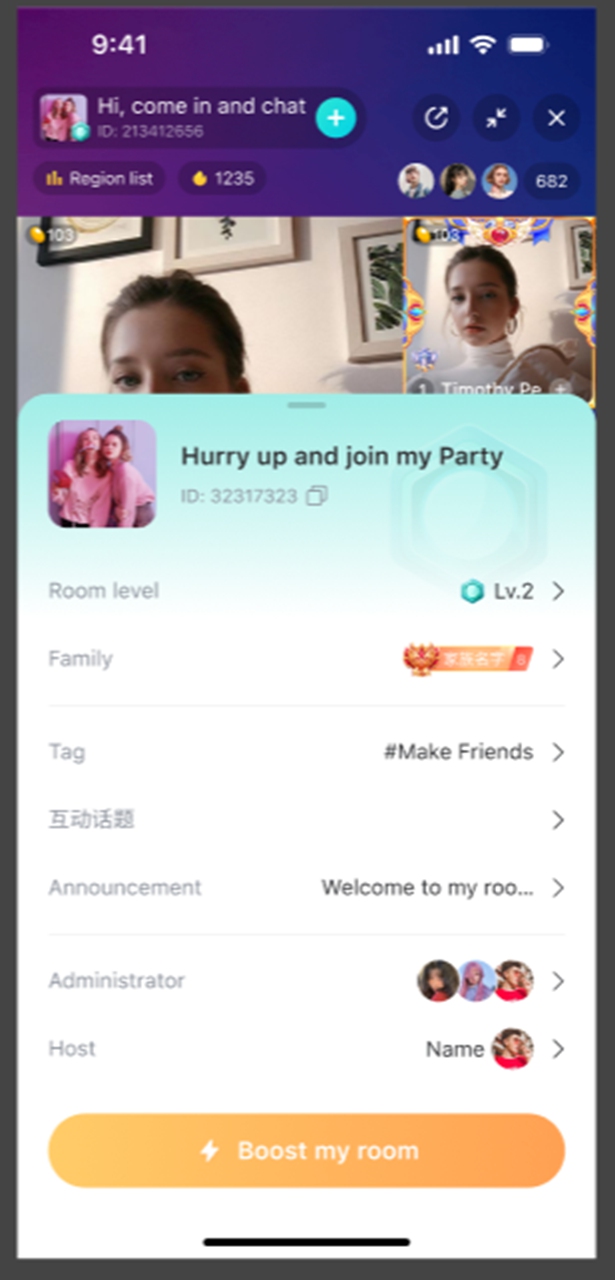
- Room Settings:You can access a management panel to set an "Announcement" for new visitors, appoint "Administrators" to help manage the chat, and view your "Room level."
- Use Room Tools:Hosts have access to a special toolkit. This menu contains camera controls, beauty effects, and interactive games like "Truth or Dare" and "Draw & Guess" to play with your guests.
- Increase Visibility:Use the "Boost my room" button to promote your stream and attract more viewers and potential guests.
How to Join as a Guest
Participating in someone else's stream is just as easy.
- Find a Room:Browse Bigo Live and enter a Multi-Guest stream that has an open seat.
- Request to Join:Tap on an empty seat marked with a "+" icon. This will send a request to the host.
- Wait for Approval:The host will receive your request and can choose to approve or deny it. If approved, your camera or microphone will activate, and you will appear in one of the guest seats.
Frequently Asked Questions (FAQ)
Q1: As a host, can I remove a guest from my stream?
A: Yes. Hosts have full control over their guest seats. You can remove a guest at any time by tapping on their icon and selecting the remove option.
Q2: What do the yellow coin icons and numbers next to each participant mean?
A: These numbers represent the value of virtual gifts a person has received during the stream. It is a quick way to see who the most supported participants are in the room.
Q3: How can I see my room's ranking?
A: Multi-Guest rooms are often included in a "Popularity List." You can access this list to see how your room ranks against others on an hourly, daily, or weekly basis.
Q4: What is the maximum number of people allowed in one room?
A: Depending on the host's selection, a room can have up to 12 participants at one time, including the host.
Q5: As a host, can I control the audio and video of my guests?
A: Hosts have the ability to mute guests or remove them from a seat if they are disruptive, giving you full control over your broadcast environment.
Conclusion
You now have the information needed to host or join a Multi-Guest broadcast on Bigo Live. By starting a room, selecting your preferred number of seats, and using the available management tools, you can create a collaborative and engaging live event. For viewers, joining a stream as a guest is a fantastic way to interact directly with your favorite creators. Get started and try hosting your own multi-person party today.
