


Ever wanted to be a streaming star but felt held back by shyness or a plain setup? Many creators face this, wanting to connect and entertain but craving a bit of mystery or a unique edge.
BIGO LIVE's Virtual Live feature steps in, offering a cool way to broadcast using a 3D avatar instead of your camera. But is it just a gimmick, or can you truly build a presence with a virtual persona? Get ready to explore how this feature can redefine your streaming!
What Exactly is BIGO LIVE Virtual Live?
BIGO LIVE Virtual Live is a feature that lets you stream using a personalized 3D avatar. Instead of showing your own face, your audience sees an animated character that mimics your facial expressions and head movements in real time. This means you can still be expressive and connect with viewers without being physically on camera. It's a way to create a whole new on-screen personality.
Getting Started: Your First Virtual Live Stream (Step-by-Step Guide)
Ready to create your virtual self? Setting up Virtual Live on BIGO is straightforward. Here’s how to do it:
- Accessing the Feature
Open your BIGO LIVE application. Then, tap the camera icon, which you'll usually find at the center-bottom of the home screen.
Once the live interface opens, you'll need to switch from the default camera live mode. Swipe right or look for an option to select "Virtual Live" mode.
- Creating and Customizing Your 3D Avatar
This is where the fun begins – designing your unique online personality!
After selecting "Virtual Live," look for the clothing icon located towards the bottom-right of the camera interface. You'll likely be presented with a selection of pre-designed avatar styles. Pick one as a starting point that you can then modify.
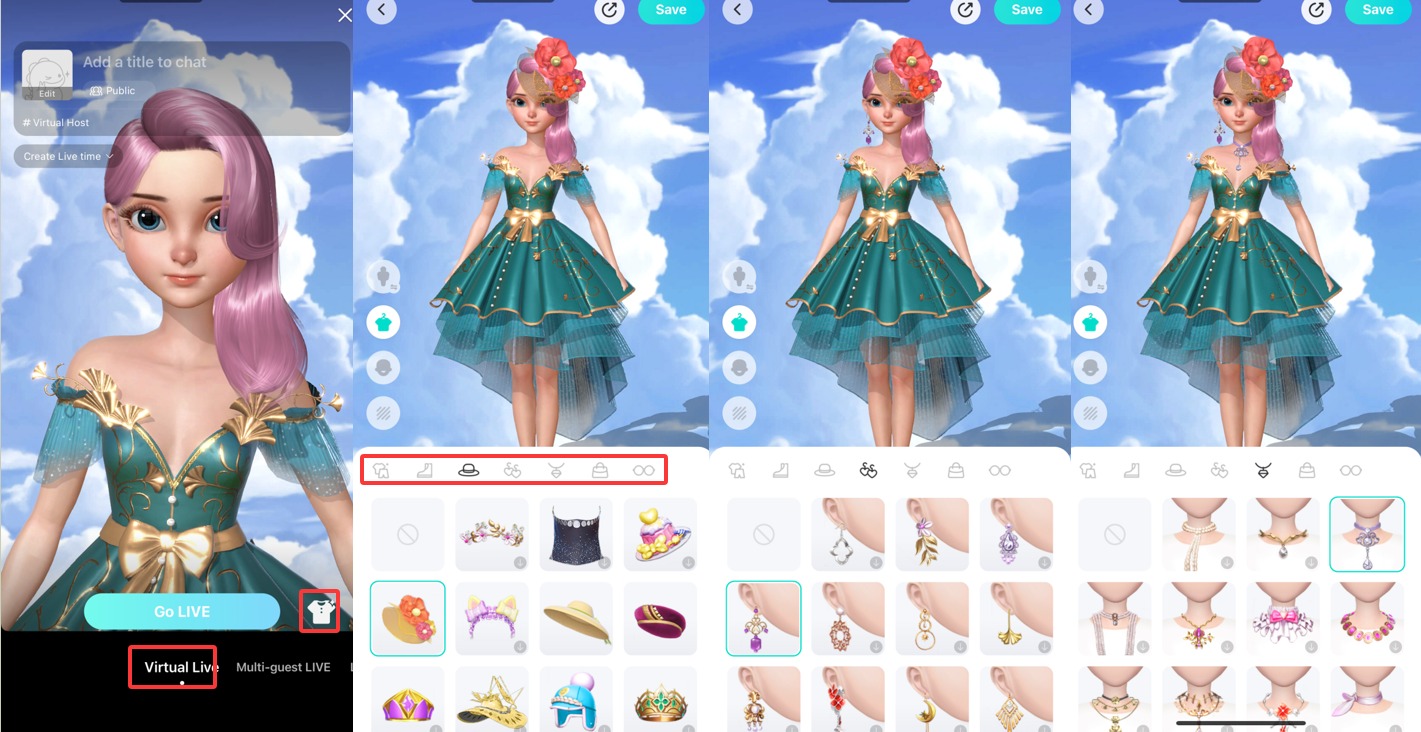
- Personalize your avatar
Outfits: You can choose different tops, bottoms, shoes, and other accessories. Browse through the options to find a style that fits your avatar's persona or even what you'd like to wear.
Facial Features: This is key to making your avatar unique. Tap on categories like "Hair," "Eyes," "Brows," "Skin Tone," "Makeup," "Lips," and "Nose" to see the available choices. Experiment with different styles, colors, and shapes until you're happy. BIGO LIVE offers various skin tones so you can create an avatar that truly represents you or your chosen character.
Select a Background: You can also choose a virtual background for your avatar to stream against. This adds another layer of customization to your virtual environment.
Save Your Creation: Once you're satisfied with your avatar's look and background, make sure to save your changes. Then you can exit the avatar creation interface.
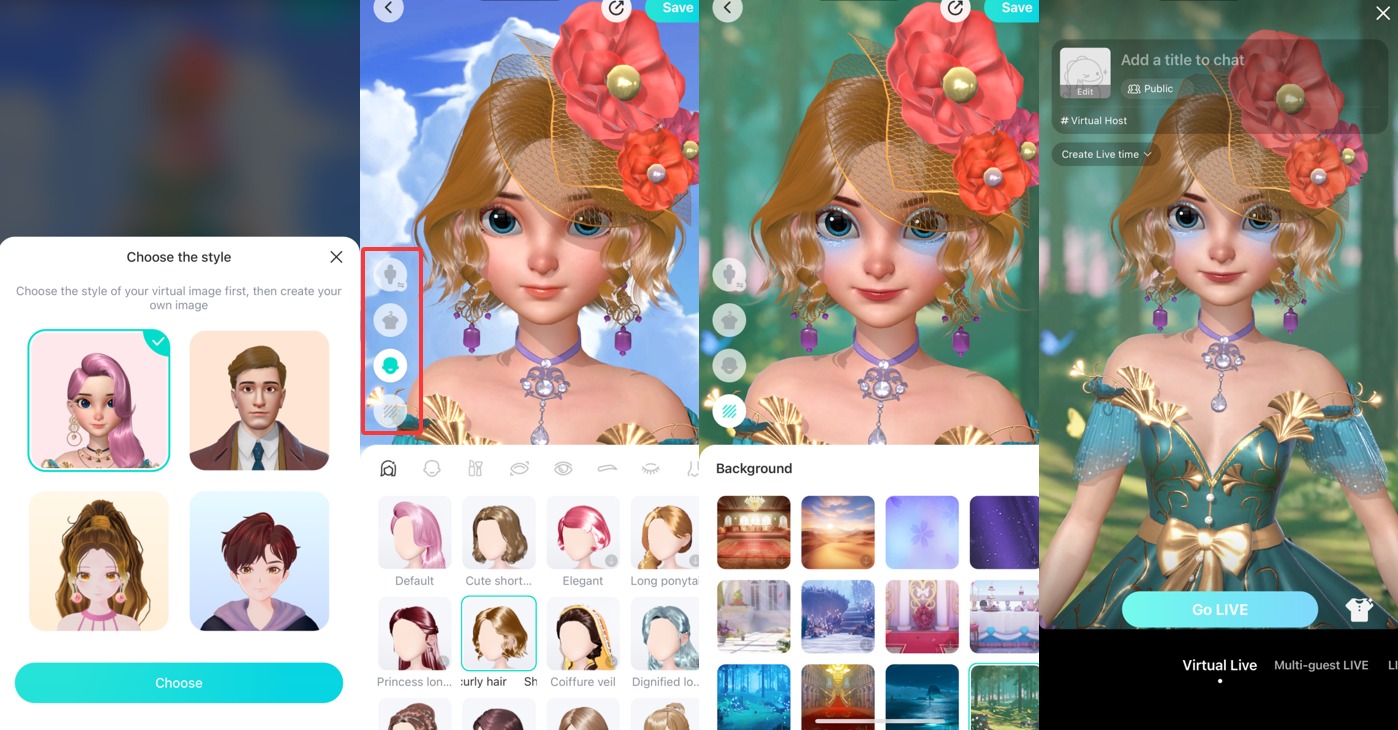
- Going Live with Your Avatar
With your avatar ready, it's time to start your broadcast!
When you begin your livestream in "Virtual Live" mode, your 3D avatar will appear on screen.
The magic is that your avatar will mirror your facial expressions and head movements in real-time, thanks to your device's camera tracking you. So, smile, talk, and interact naturally, and your avatar will do the same.
FAQ - Your Virtual Live Questions Answered
Lighting: Ensure your face is well and evenly lit. Poor lighting makes it harder for the camera to track your expressions.
Internet Connection: A slow or unstable connection can cause lag in how your avatar's movements are broadcast.
Device Performance: Older or less powerful devices might struggle with the processing demands. Close other background apps to free up resources.
Camera Obstruction: Make sure nothing is blocking your device's front camera.
Step into Your Virtual Live
BIGO LIVE's Virtual Live offers a fantastic way to stream with more privacy, creativity, and fun.
Whether you're shy, want to build a unique character, or just explore new ways to connect, it’s a feature worth trying.
By following the steps to set up your avatar, applying some tips for a great stream, and letting your personality shine through, you can create an engaging and memorable presence on the platform. So go ahead, design your avatar, and step into the virtual spotlight!
