


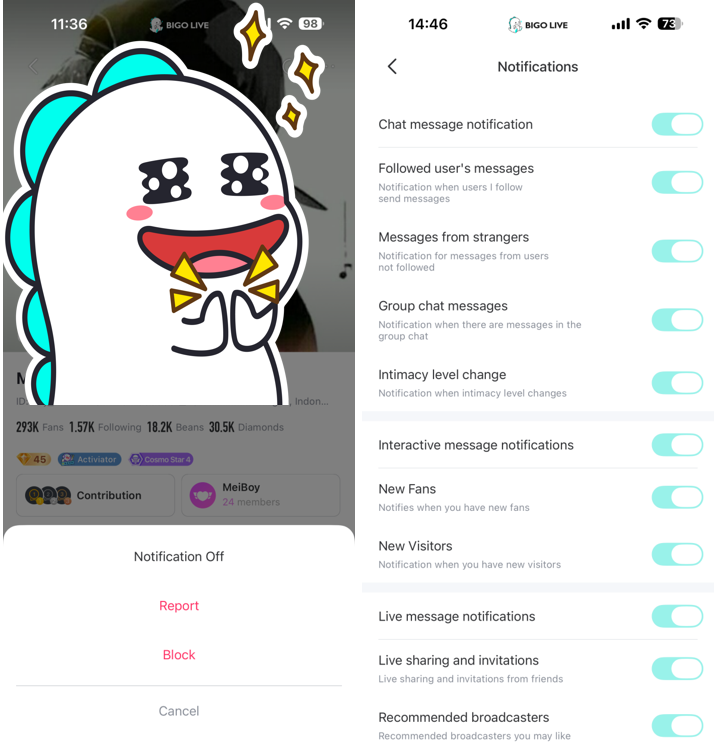
We’ve all been there: you follow a host because they seemed cool once, and now they go live five times a day and blow up your phone. You don't have to unfollow them and hurt their feelings; you can just put their alerts on ice.
By the end of this tutorial, your notification tray will only show the hosts you love, and the ones who ping you too much will be silenced. You’ll need your "Following" list and about sixty seconds to master your alert feed.
Join 600 Million Users on BIGO LIVE
Experience the next level of social interaction and live entertainment.
Download BIGO LIVE NowSteps to Mute Specific Notifications
Pro Tips for Notifications Management
- The Special Follow Star: If you really love someone, don't just follow them—tap the star icon. This gives them "Special Follow" status, which can be set to override silent modes. This is a key part of how to use BIGO LIVE effectively.
- Mute the Fans Group: If you’re in a "Fans Group," the group chat can get wild. Go into the group settings and mute the "Message Alerts" so you don't get 500 pings an hour.
- Scheduling "Quiet Time": Use your phone’s built-in "Focus Mode" to silence BIGO specifically during work hours or while you’re sleeping.
- Unfollow Ghost Streamers: Every month, go through your following list. If someone hasn't streamed in 30 days, just unfollow them to keep your app from wasting background data. This is common advice across popular live streaming apps.
Curious about more ways to customize your experience? Dive into our guide on BIGO LIVE app features.
Frequently Asked Questions
No cap, they have zero way of knowing. You’ll still show up in their fan list, and they won't get any alert that you turned them off.
Absolutely. They will still appear at the top of your app when they go live; you just won't get the buzz in your pocket.
Just go back to their profile, hit that same menu, and pick "Notification On."
