


If you spend a lot of time watching high-def streams or sending flashy gift animations, your phone stores a massive pile of tiny files like thumbnails and temporary logs. Over time, these files clog up your storage and make the whole experience feel sluggish.
Here, we will tell you how to clear Cache on Bigo Live. By the time you finish this guide, your app will stop lagging and start loading streams instantly.
Steps to Wipe Junk Files On Bigo Live
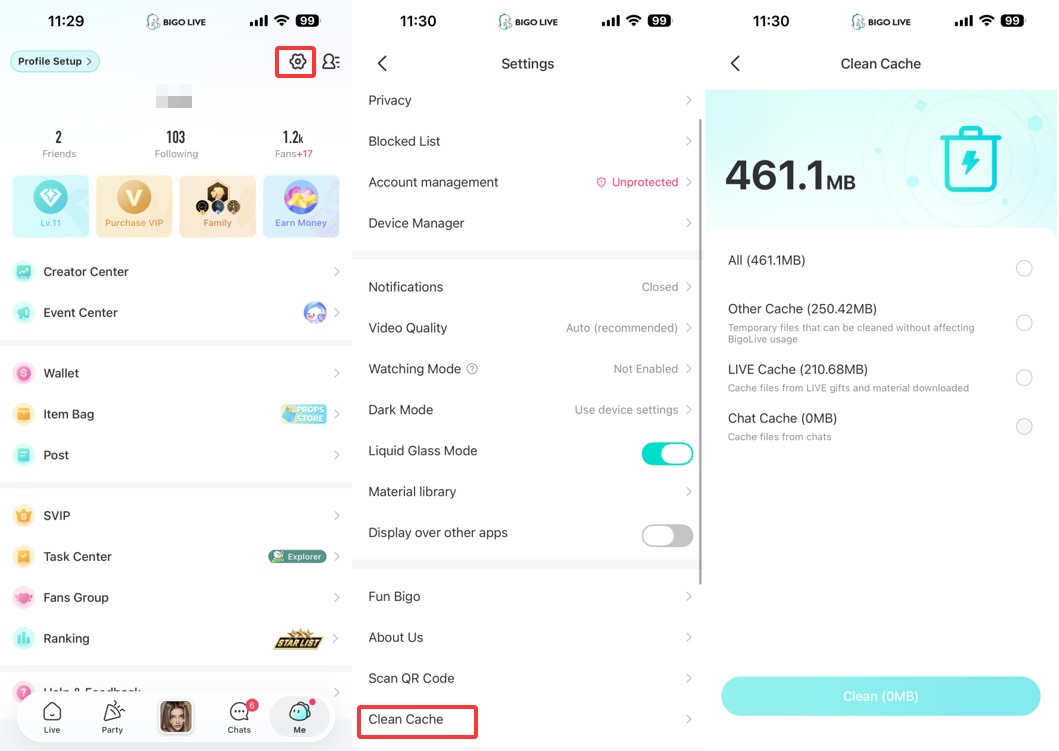
- Tap the "Me" icon at the bottom right of the main screen to pull up your profile dashboard.
- Hit the gear icon in the top right corner to open your "Settings" menu.
- Scroll all the way to the very bottom of the list where you see the "Clean Cache" option.
- Click that "Clean Cache" line to open the breakdown of what's eating your memory.
- Verify that "All" is selected, or manually check "Other Cache," "LIVE Cache," and "Chat Cache" to make sure you're getting a deep clean.
- Press the big blue "Clean" button at the bottom of the screen.
- Watch for the number to hit zero bytes and then restart your phone to let the RAM refresh.
⚡ Pro Tips for Peak Performance
FAQ
Will this log me out of my account?
Not at all. Clearing the cache only removes temporary assets. If you hit "Clear Data" in your phone settings, that's when you'll have to sign back in.
Does this delete my saved photos?
No, any photos you’ve posted to your profile or saved to your phone's gallery are safe. This only hits the "invisible" files.
How often should I do a cleanup?
If you’re a heavy user, once every three days is a solid plan. For casual viewers, once a week keeps things snappy.
Did this guide help speed up your app?