


Ready to join over 600 million users on one of the most popular live streaming platforms? Getting started with BIGO LIVE is simple and quick. Whether you want to watch live streams, broadcast your own content, or connect with creators worldwide, accessing your account takes just a few steps on both mobile and desktop devices.
Logging into BIGO LIVE on Mobile
Most users access BIGO LIVE through their smartphones for on-the-go streaming. The mobile app provides several convenient login options to match your preferences and existing accounts.
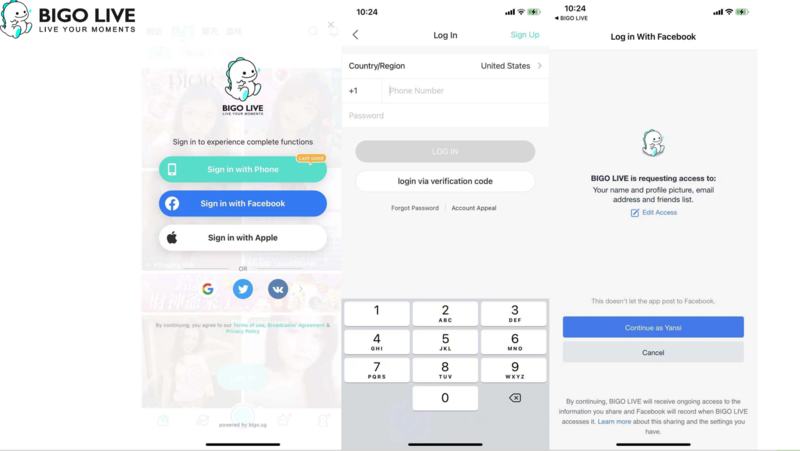
Step 1: Open the BIGO LIVE App
Tap the BIGO LIVE icon on your smartphone to launch the application. If you haven't installed it yet, visit the App Store for iOS devices or Google Play Store for Android devices to download it. The app is free and takes just moments to install.
Step 2: Choose Your Preferred Login Method
BIGO LIVE supports multiple authentication options to make signing in convenient. Select the method that works best for you from the following choices:
- Sign in with Phone: Enter your registered phone number and follow the verification prompts sent via SMS.
- Sign in with Facebook: Use your Facebook credentials to log in instantly without creating separate login details.
- Sign in with Apple: Perfect for iOS users who want to use their Apple ID for seamless authentication.
- Other Options: Additional sign-in methods include Google, Twitter, and VK, giving you flexibility based on your existing accounts.
Pro Tip: If you plan to switch between devices frequently, consider linking your account to multiple login methods. This gives you backup options if one method becomes unavailable. Learn more about managing your account in our complete BIGO LIVE guide.
🎯 Which Login Method Suits You Best?
Take this quick quiz to find your ideal BIGO LIVE login method!
Logging into BIGO LIVE on Desktop
Desktop access is perfect for viewers who want a larger screen experience or broadcasters setting up professional streams. The web version offers the same features with the added convenience of a full-sized display.
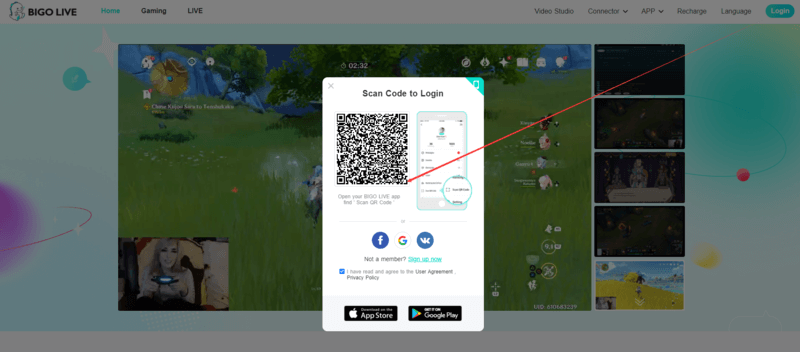
Step 1: Visit the Official Website
Open your web browser and go to the BIGO LIVE official website. The platform works with all major browsers including Chrome, Firefox, Safari, and Edge.
Step 2: Click on the "Login" Button
Look for the "Login" button located at the top right corner of the homepage. This will open the authentication screen with your available options.
Step 3: Select Your Login Method
Similar to the mobile app, desktop users have several ways to access their accounts. Choose the option that matches your setup:
- Scan QR Code: Open the BIGO LIVE app on your phone, tap your profile icon, select "Scan QR code," and point your camera at the code displayed on your desktop screen. This method is both fast and secure, requiring no password entry.
- Login with Phone Number: Enter your registered phone number and password to access your account directly.
- Social Media Accounts: Sign in using your Facebook, Google, or VK credentials for instant access without remembering additional passwords.
Important: For the QR code method to work, your mobile device must already be logged into your BIGO LIVE account. This security measure prevents unauthorized access to your account. Check out our guide on using BIGO LIVE on PC for more desktop tips.
Ready to Start Streaming?
Join millions of creators and viewers on BIGO LIVE today. Download the app and start your live streaming experience!
Download BIGO LIVE NowTroubleshooting Login Issues
Running into problems while trying to access your account? Most login issues can be resolved quickly with a few simple steps. Here's how to fix the most common problems users encounter.
Quick Troubleshooting Checklist
Work through these steps to resolve your login issue:
Account Recovery
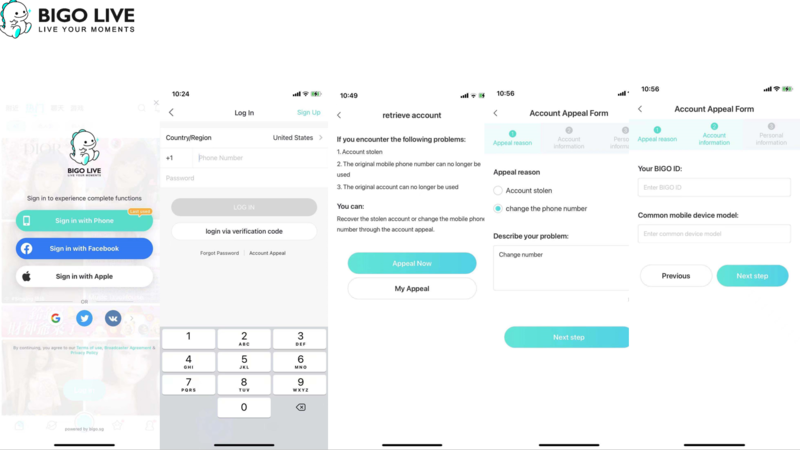
If your account has been compromised or you've lost access to your registered phone number, BIGO LIVE offers an account recovery feature to help you regain control. Follow these steps to submit a recovery request:
- Open the BIGO LIVE app on your device
- Tap "Sign in with Phone" on the login screen
- Select "Account Appeal" and then tap "Appeal Now"
- Complete the appeal form with your BIGO ID, current phone number, email address, and any other requested information
- Submit the form and wait for the support team to review your request
The BIGO LIVE support team typically responds within 24-48 hours. For additional help, visit our BIGO LIVE Support guide or check if there are issues with downloading BIGO LIVE.
Check Internet Connection
A stable internet connection is required for authentication. If you're experiencing login failures, try switching between Wi-Fi and mobile data to identify connectivity issues. Sometimes network restrictions or firewalls can block authentication requests.
Reinstall the App
When other solutions don't work, a fresh installation often resolves unexpected technical problems. Delete the BIGO LIVE app from your device, restart your phone, and reinstall it from your app store. This clears corrupted files and refreshes all app components.
Security Reminder: Never share your password or verification codes with anyone claiming to be from BIGO LIVE support. The official team will never ask for your password. Learn about keeping your account secure in our BIGO LIVE safety guide.
Getting Started After Login
Once you've successfully logged in, you're ready to explore everything BIGO LIVE has to offer. New users should start by setting up their profile, exploring featured streams, and learning about the platform's interactive features like virtual gifts and multi-guest rooms.
For broadcasters looking to start their streaming career, check out our guides on becoming a BIGO LIVE host and growing your popularity. You can also learn about earning money from BIGO LIVE if you're interested in monetizing your content.
The platform offers various features to enhance your streaming experience, including filters and effects, PK battles, and multi-guest rooms for collaborative streams.
