


BIGO LIVE is one of the world's largest live-streaming platforms, serving over 700 million users worldwide, and its PC version gives both viewers and creators a noticeably richer experience than the mobile app alone. Watching on a bigger screen means sharper visuals, while broadcasting from a PC unlocks professional tools like external webcams, dedicated microphones, and multi-source scenes that mobile streaming simply can't match.
This guide explains everything you need to know about BIGO LIVE PC: how to watch live streams on PC, how to log in, when to download BIGO LIVE Streamer or BIGO LIVE Connector, and how to set up OBS for more advanced broadcasts.
Can You Use BIGO LIVE on PC?
Yes. You can use BIGO LIVE on a computer in two main ways:
First, viewers can visit the official BIGO LIVE website to explore live rooms, top streams, and game live content directly from a browser. The official site includes sections such as Top Streams and Game Live, making it easy to discover live content on desktop.
Second, creators can go live from a PC using official streaming tools. BIGO provides BIGO LIVE Streamer for computer-based broadcasting, BIGO LIVE Connector for screen or game streaming, and an OBS Stream option for creators who prefer a more advanced production setup.
New to BIGO LIVE? If you are new to the app experience, the BIGO LIVE app features guide can help you understand chat, gifting, following, and other tools before you move between mobile and PC.
Best BIGO LIVE PC Option for Your Goal
| What you want to do | Best method | Download needed? | Best for |
|---|---|---|---|
| Watch BIGO LIVE on PC | Official BIGO LIVE website | No | Viewers who want a bigger screen |
| Chat, follow streamers, and interact | Website login | No | Viewers who want more features |
| Stream PC games or share your screen | BIGO LIVE Connector | Yes | Game streaming and screen sharing |
| Broadcast with camera from PC | BIGO LIVE Streamer | Yes | Creators using webcam or external camera |
| Use scenes, overlays, and advanced controls | OBS Stream | OBS required | Advanced creators and professional streamers |
How to Watch BIGO LIVE on PC
The easiest way to use BIGO LIVE PC is to watch streams through your browser.
No downloads are required to watch — simply open Chrome, Firefox, Safari, or Edge and go to the BIGO LIVE website to browse featured streamers instantly, without creating an account.
The platform organizes content into three main hubs: the Home page for trending singers, dancers, and casual gamers; a dedicated Gaming section for titles like League of Legends, Counter-Strike, and Overwatch; and a broader LIVE section covering fitness, cooking, music, and talk shows with country filters.
Logging in isn't mandatory for viewing, but it unlocks chat, gifting, and following your favorite streamers. The fastest way in is scanning a QR code with the BIGO LIVE mobile app, though you can also sign in directly with a phone number, email, or linked social account.
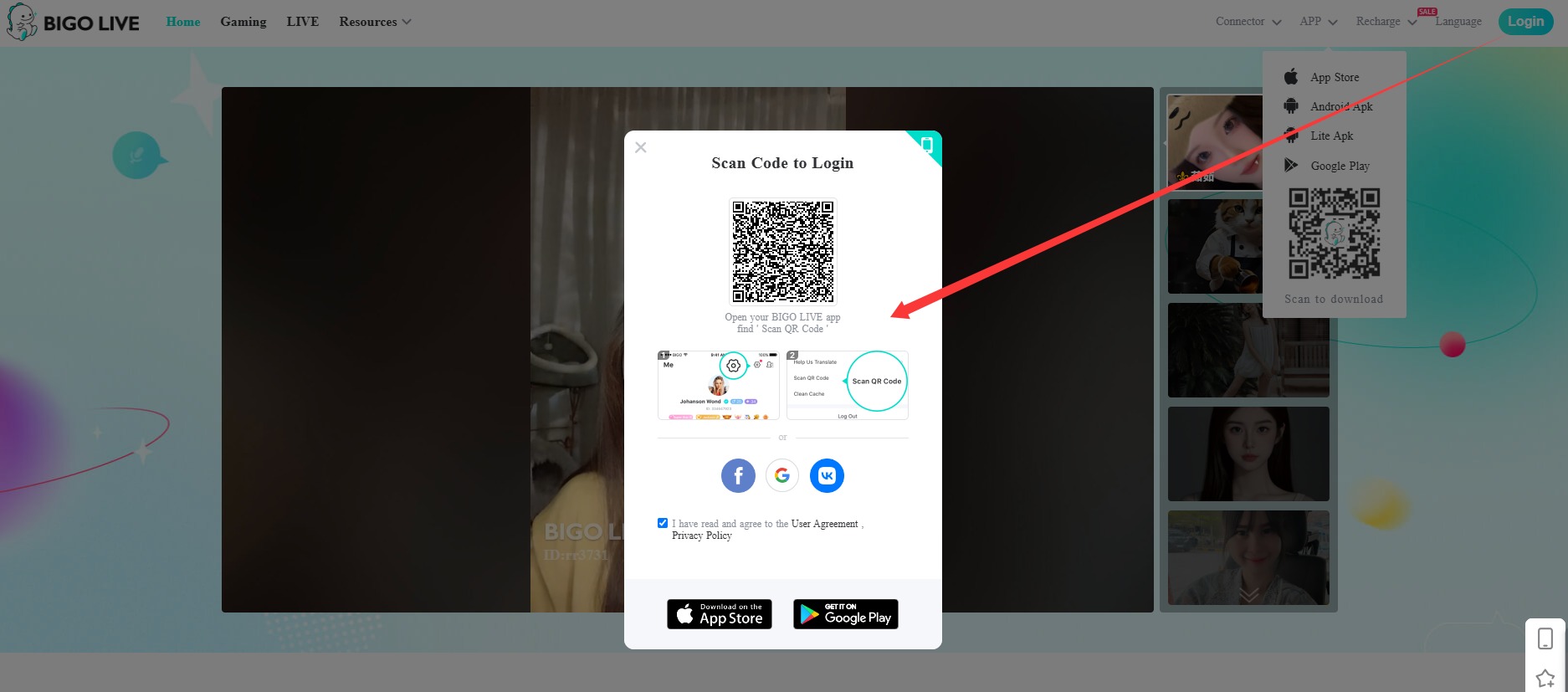
To make QR login smoother, download BIGO LIVE on your phone first. If you need help signing in, read the BIGO LIVE login guide.
How to Go Live on BIGO LIVE from PC
If your goal is to broadcast instead of just watch, BIGO LIVE gives you several PC streaming methods. The right choice depends on what you want to stream.
Use BIGO LIVE Connector if you want to share your PC screen or stream games.
View Connector setupUse BIGO LIVE Streamer if you want to go live from your computer with a camera and more direct PC control.
View Streamer setupUse OBS Stream if you need custom scenes, overlays, multiple sources, or a more professional livestream setup.
View OBS setupBefore you start, a simple creator setup check can help. For more preparation, see the live streaming equipment guide and the live streaming internet speed guide.
Method 1: BIGO LIVE Connector (Screen Sharing)
Download BIGO LIVE ConnectorBest for game streaming, tutorials, and desktop demos, Connector mirrors your PC screen to your BIGO LIVE broadcast while stream management still happens through your phone.
- Confirm your PC runs Windows 10 or newer, then download and install Connector from the official BIGO site
- Launch Connector — it displays a QR code on screen
- Open the BIGO LIVE app on your phone, tap the broadcast button, select "Game Live," and scan that QR code
- Once linked, your screen streams automatically, and viewer messages, gifts, and controls are managed from your mobile app
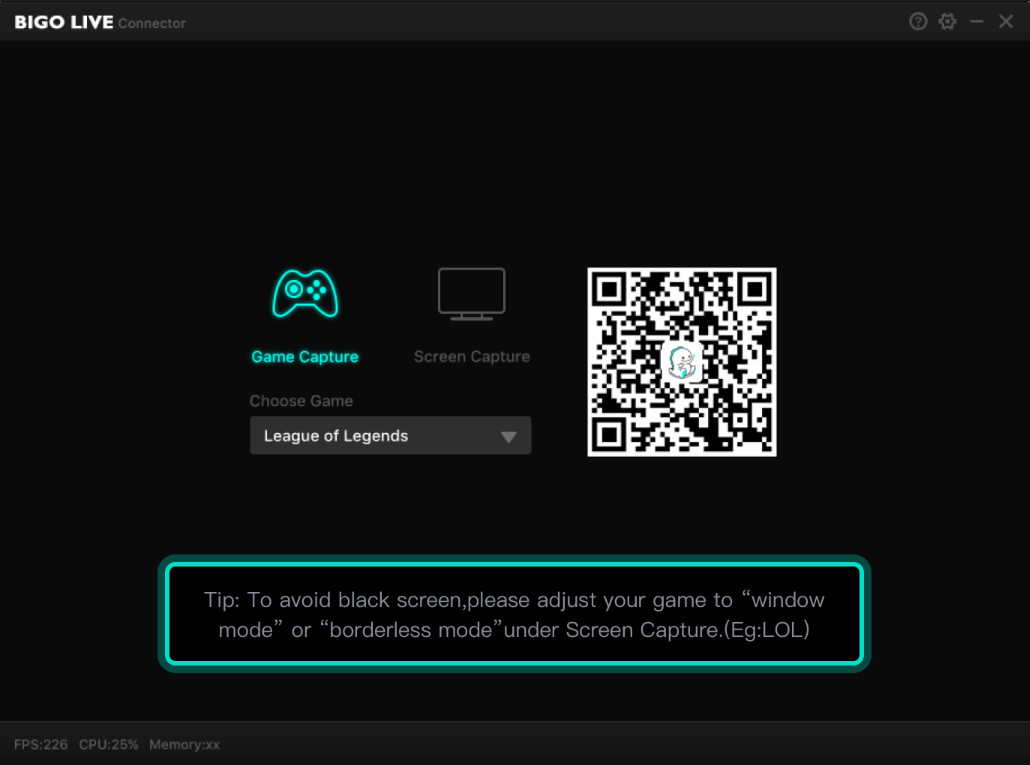
This method requires minimal setup time, making it ideal for streamers who want to go live quickly between gaming sessions without fussing over complex configuration menus.
Method 2: BIGO LIVE Streamer (Camera-Based Pro Broadcasting)
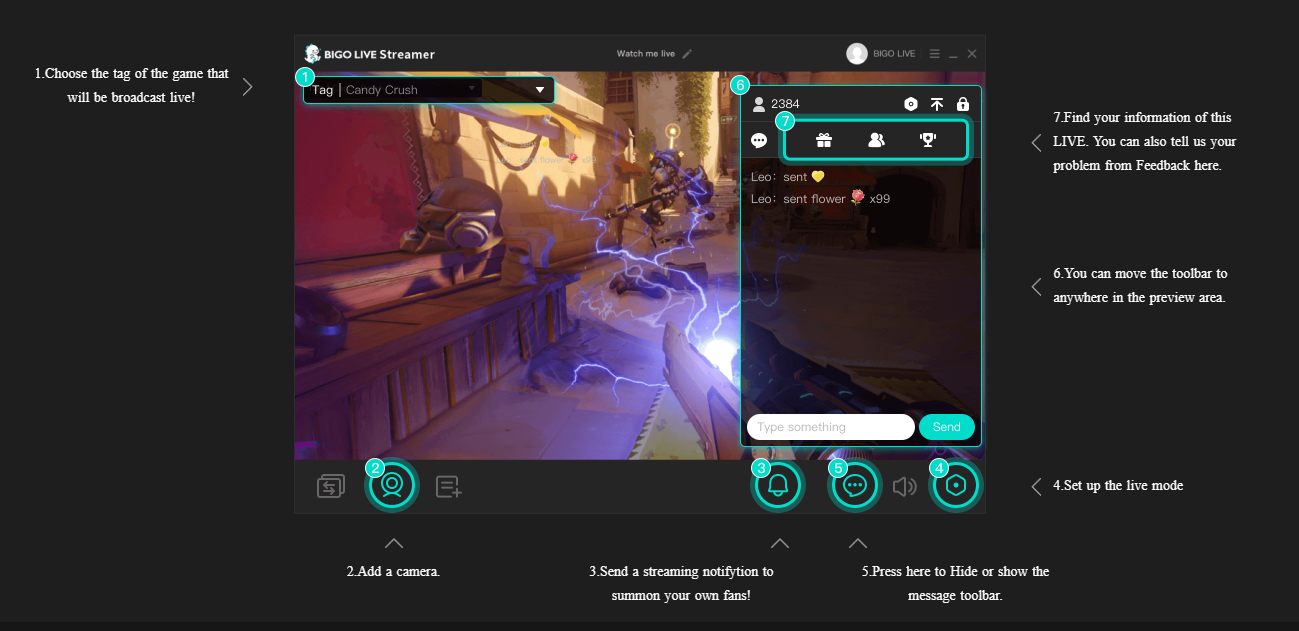
Download BIGO LIVE StreamerFor creators who want full control without relying on a phone, Bigo Live Streamer supports webcams, audio mixers, and stream customization directly from the desktop.
How to Use BIGO LIVE Streamer
- Download BIGO LIVE Streamer.
- Install and open the software on your computer.
- Log in with your BIGO LIVE account.
- Set your live type, tag, camera, and basic live settings.
- Start your live broadcast.
Video quality settings should match your upload speed to avoid buffering:
| Resolution | Bitrate | Upload Speed Needed | Best For |
|---|---|---|---|
| 720p (30fps) | 2500–4000 kbps | 5 Mbps | Talk shows, standard broadcasts |
| 720p (60fps) | 4500–6000 kbps | 8 Mbps | Gaming, fast motion |
| 1080p (30fps) | 4500–6000 kbps | 8 Mbps | High-quality performances |
| 1080p (60fps) | 6000–8000 kbps | 12 Mbps | Professional gaming streams |
For planning stream settings, you can also use the resolution calculator or review tips for fixing blurry live stream quality.
Method 3: OBS Studio (Advanced & Multi-Scene Streaming)
Open OBS Stream SetupOpen Broadcaster Software is the go-to choice for creators who want custom overlays and multiple scenes with granular control.
How to Use OBS with BIGO LIVE
- Log in to BIGO LIVE and go to your Personal Centre.
- Open Settings and turn on OBS streaming.
- Copy your server URL and stream key.
- Open OBS, choose Custom stream settings, and paste the details.
- Click Start Streaming in OBS.
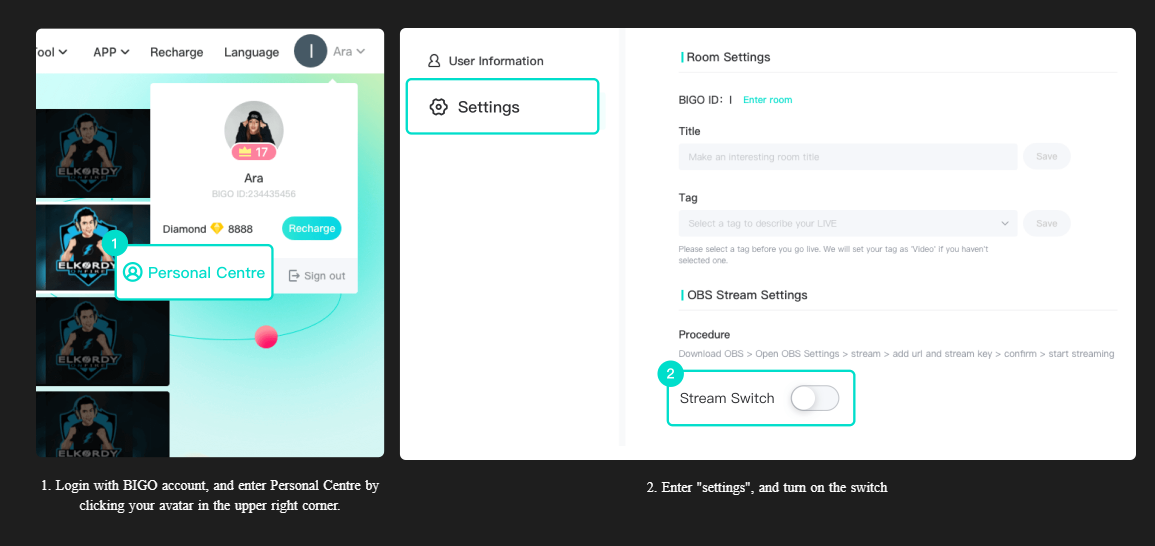
Keep your stream key private. Your stream key is connected to your live broadcast, so it should never be shared publicly.
Tips: For OBS streaming, test your scenes, audio sources, and stream settings before going live. This helps avoid common issues such as no sound, incorrect video source, or a disconnected stream.
For stronger on-camera presentation, see the BIGO LIVE streamer style guide and the first 10 minutes livestream guide.
Fixing Common BIGO LIVE PC Issues
Most streaming problems on PC come down to connection stability, hardware setup, or software configuration rather than the platform itself.
Before going live from your computer, check your internet connection, camera, microphone, and live settings. A stable setup helps your audience enjoy a smoother stream.
- Buffering or lag: test upload speed at speedtest.net, close bandwidth-heavy apps, and lower bitrate if it consistently falls short. For game streaming or screen sharing, close unnecessary programs before you start. This can help improve computer performance and reduce interruptions during your broadcast.
- Poor video quality: ensure at least 300+ lux lighting and disable auto-exposure/white-balance for consistent output
- No sound: check Windows Sound settings (Control Panel > Sound > Recording) and confirm the mic isn't muted in-app
- Frequent disconnections: switch from Wi-Fi to an ethernet cable and check firewall rules aren't blocking BIGO LIVE apps
If a problem continues, the BIGO LIVE support guide can help you find the right help channel.
Frequently Asked BIGO LIVE PC Questions
Tap or click any question to expand the answer.
Is there a BIGO LIVE PC version?
Yes. You can watch BIGO LIVE on PC through the official website. Creators can also use BIGO LIVE Streamer, BIGO LIVE Connector, or OBS streaming support to go live from a computer.
Can I watch BIGO LIVE on PC without downloading anything?
Yes. You can watch BIGO LIVE directly from your browser by visiting the official BIGO LIVE website.
How do I download BIGO LIVE for PC?
For PC streaming, download the official BIGO LIVE Streamer or BIGO LIVE Connector from BIGO LIVE. BIGO LIVE Streamer is recommended for camera-based broadcasting, while BIGO LIVE Connector is recommended for screen sharing and PC game streaming.
Can I stream PC games on BIGO LIVE?
Yes. Use BIGO LIVE Connector to stream PC games or share your computer screen with your BIGO LIVE audience.
Can I use OBS with BIGO LIVE?
Yes. BIGO LIVE supports OBS streaming. After enabling OBS streaming in your BIGO LIVE settings, copy your server URL and stream key into OBS, then start streaming.
Which BIGO LIVE PC tool should I choose?
Choose BIGO LIVE Streamer for camera-based live broadcasts, BIGO LIVE Connector for PC screen or game streaming, and OBS for advanced production setups with custom scenes and overlays.
Getting Started on BIGO LIVE PC
BIGO LIVE PC gives viewers and creators more ways to enjoy live streaming. Viewers can watch live content on a larger screen through the official website, while creators can go live from their computers using BIGO LIVE Streamer, BIGO LIVE Connector, or OBS.
Whether you want to watch, chat, stream games, share your screen, or create a more polished live show, BIGO LIVE gives you the tools to build the experience that works best for you.
Ready to connect mobile and PC?
Download BIGO LIVE on your phone, then use it to log in, scan QR codes, and manage your PC viewing or streaming experience.
