



Want to start a BIGO LIVE video call? Use Guest Live to talk on camera with one other person, add a second person for a three-person chat, or open Multi-Guest Live for a larger group. If you want to speak without showing your face, choose Audio Join.
The quickest way to connect is simple. If you are already live, open the list of people watching, tap a profile picture, and choose Connect. If you are watching a live room, tap the folded menu or link-shaped icon beside the chat bar, choose “Guest Live”, and then tap Video Join. The invitation or request must be accepted before the call starts.
Good to know: A BIGO LIVE video call happens inside a live room. Other people in the room can see and hear the call, post comments, and send gifts.
Which BIGO LIVE Video Call Option Should You Use?
Choose an option based on how many people you want on camera and whether you want to show your face.
| Option | Use it when | People on camera |
|---|---|---|
| Guest Live | You want a 1-on-1 or three-person video chat | 2 or 3 people total on camera |
| Multi-Guest Live | You want a BIGO LIVE group video call | 4, 6, 9, or 12 people total; the person opening the room is included |
| Audio Join | You want to speak without turning on your camera | You do not appear on camera |
In a regular live room, up to three people can appear on camera: the person who started the live stream plus two people who join. If you want four or more people on camera at the same time, use Multi-Guest Live.
Button names and locations can vary by app version, country, room type, or account. Follow the options shown in your BIGO LIVE app.
How to Make a 1-on-1 Video Call on BIGO LIVE
If You Are Already Live: Send an Invitation
Use this path when you are live and want someone else to appear on camera with you.
-
Start your live stream. Open BIGO LIVE and go live as usual.
-
Open the people list. Tap the list at the top of the live room.
-
Choose someone. Tap their profile picture to open their profile card.
-
Tap Connect. In some app versions, the button appears as Invite to Connect.
-
Wait for a reply. The person can accept or decline your invitation.
-
Start talking. After they accept, their video appears with yours.
You may also find Connect after opening someone’s profile from:
- A message they posted in the room chat.
- Their profile card anywhere it appears in the room.
- The gift panel after they send you a gift.
If You Are Watching a Live Room: Send a Request
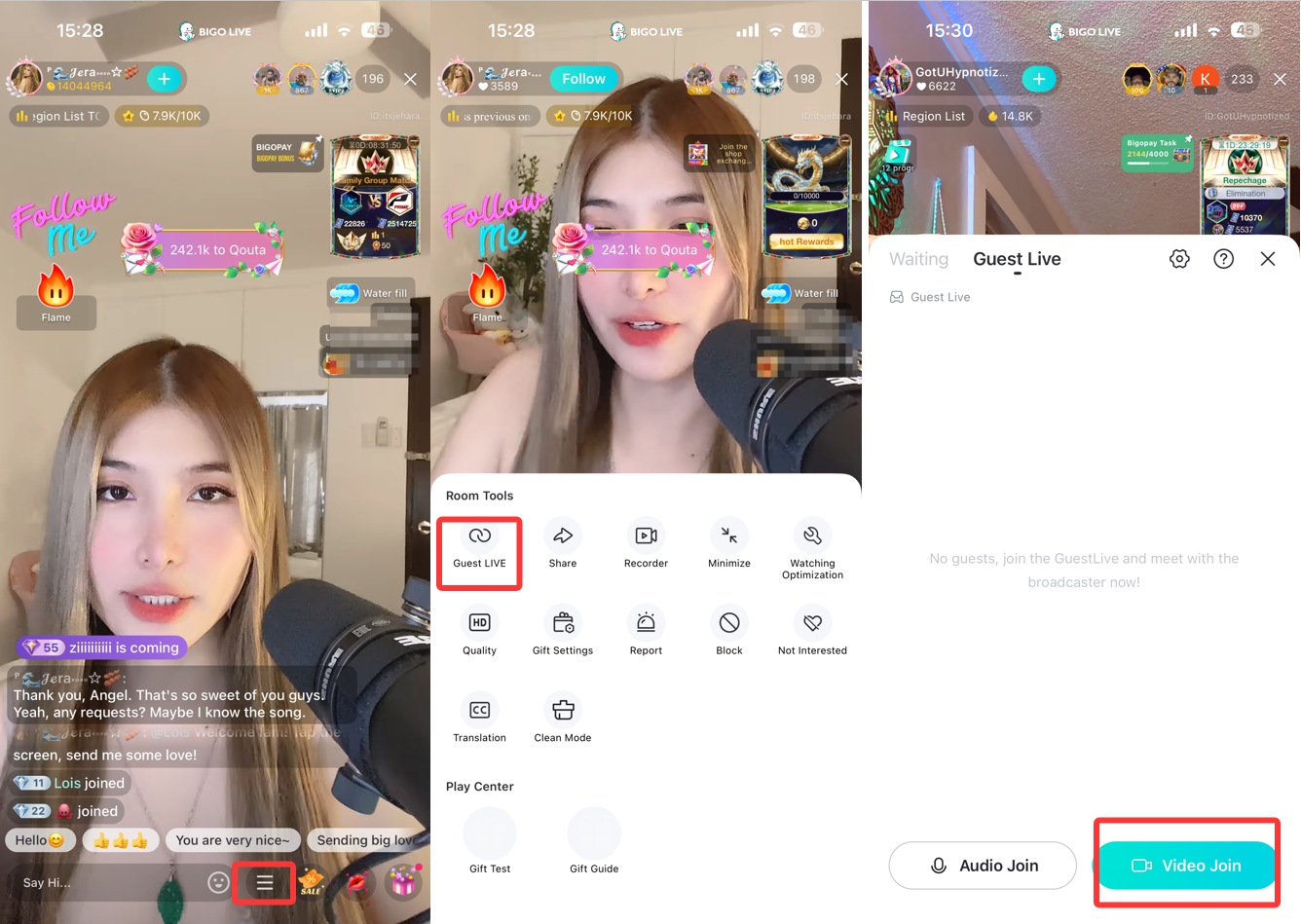
Use this path when you want to join the person who is already live.
-
Enter the live room. Open the room where you want to join the conversation.
-
Open the joining menu. Tap the folded menu or link-shaped icon beside the chat bar.
-
Choose Connect. On some app versions, a Guest Live panel opens next.
-
Tap Video Join. Choose Video Join to appear on camera, or Audio Join if you only want to speak.
-
Allow camera and microphone access. Your phone may ask for permission the first time you use this feature.
-
Wait for approval. Your camera or microphone connects after the person who is live accepts your request.
If the option is missing: The room may not allow people to join on camera, requests may be paused, or your account may not meet the room’s joining rules.
How to Start a BIGO LIVE Group Video Call
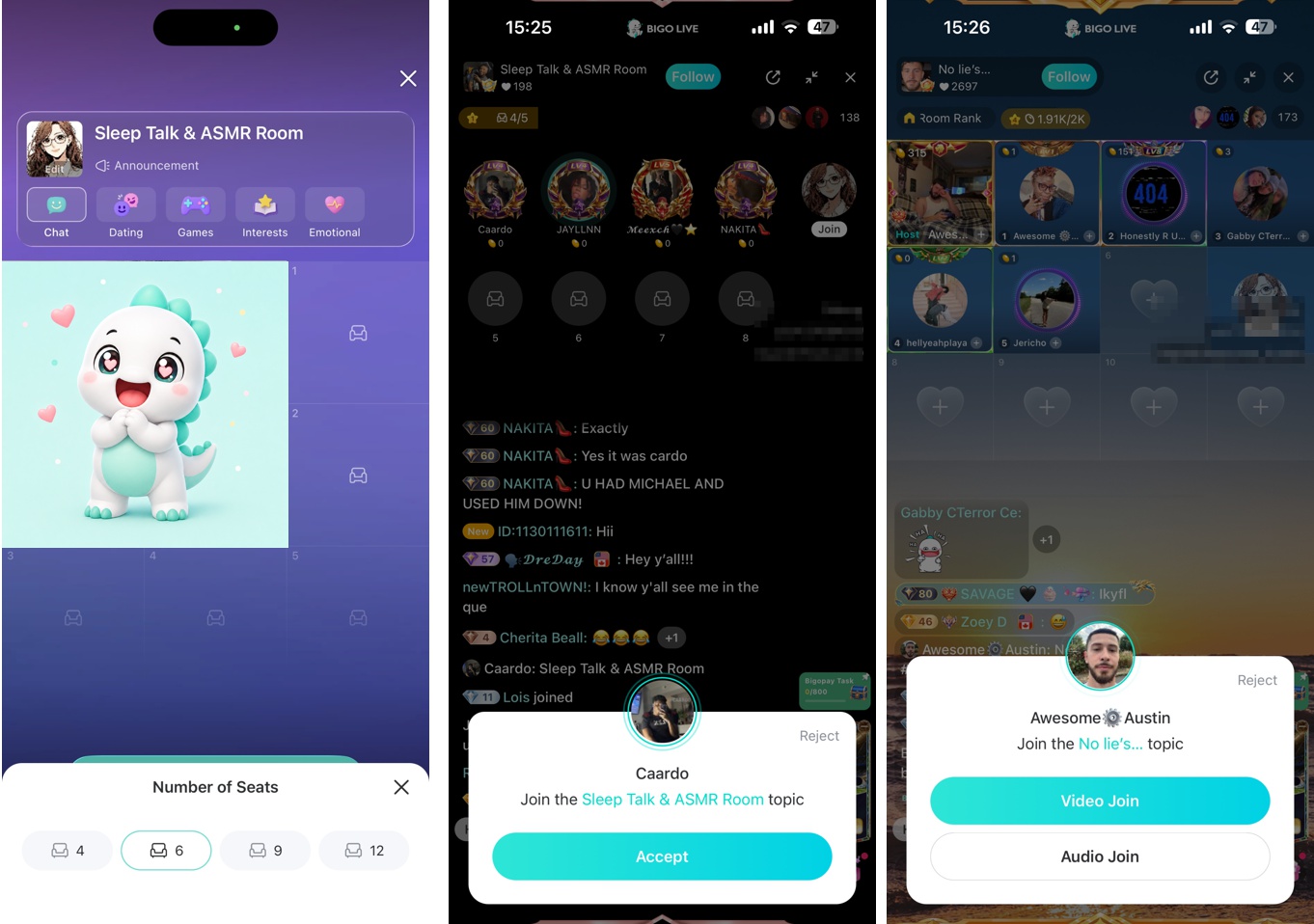
Use Multi-Guest Live for a group video call. Its room layouts hold 4, 6, 9, or 12 people in total, and the person who opens the room counts toward that number.
4-person room: The person who opens the room plus up to 3 other people.
6-person room: The person who opens the room plus up to 5 other people.
9-person room: The person who opens the room plus up to 8 other people.
12-person room: The person who opens the room plus up to 11 other people.
Open a Multi-Guest Live Room
-
Open the live setup screen. Tap the button used to start a live stream.
-
Choose Multi-Guest Live. This opens the group video room setup.
-
Select the room size. Choose 4, 6, 9, or 12 people. The number includes you.
-
Add a title. Use a short title that tells people what the room is about.
-
Start the room. Invite people or check requests from people who want to join.
-
Add people to the room. Place accepted requests in the empty spots on screen.
Join a Multi-Guest Live Room
There are two common ways to get a space on camera:
The person who opened the room can close an empty space, mute someone, or remove someone from the group video chat. Some rooms may require a certain account level, Family membership, or phone verification before you can join.
Can You Join a BIGO LIVE Video Call Without Showing Face?
Yes. Choose Audio Join instead of Video Join. Your voice is added to the live room, but your camera stays off. You may still need to give BIGO LIVE microphone access.
Audio Join does not make the call private. Everyone in the room can hear the conversation. When you join with video, the on-screen controls let you turn the camera on or off, switch between the front and rear cameras, and mute or unmute the microphone.
Is a BIGO LIVE Video Call Private?
No. Guest Live and Multi-Guest Live take place inside a live room. Everyone watching the room can see and hear the people on camera. A call with only two people on screen is still open to the rest of the room.
Before you join a BIGO LIVE video chat:
- Check who is live and what people are talking about.
- Keep your phone number, home address, passwords, login codes, payment details, and ID documents off camera.
- Move personal photos, letters, and work papers out of camera view.
- Decline the invitation or stop appearing on screen if someone makes you uncomfortable.
Is a BIGO LIVE Video Call Free?
You do not normally need to pay to use Guest Live or join a Multi-Guest Live room. Sending virtual gifts is optional and is not required to appear on camera.
People can still send gifts during the video chat. Gift animations can appear while the conversation continues.
BIGO LIVE Video Call Not Working? Try These Fixes
Connect or Video Join Is Missing
The live room may not allow people to join on camera, requests may be paused, or your account may not meet the joining rules. The button can also move after an app update. Check the folded menu, the link-shaped icon, and the Guest Live panel.
BIGO LIVE Camera or Microphone Is Not Working
Open your phone’s Settings, find BIGO LIVE, and allow Camera and Microphone access. Return to the app and join again. Also check that your camera is on and your microphone is not muted.
The Invitation Does Not Arrive
The other person may be active in another room, or the invitation may be late because of the network. Wait a few seconds and send it again.
You Can Hear Audio but Cannot See Video
The other person may have turned off the camera, chosen Audio Join, moved BIGO LIVE to the background, or lost enough signal to stop sending video. Ask them to return to BIGO LIVE, turn on the camera, or join again from a stronger network.
The BIGO LIVE Video Call Keeps Freezing
Use a stable Wi-Fi connection, stop large downloads, move closer to the router, and close other apps that are using the network or making the phone work hard. If needed, leave the video call and rejoin with Audio Join.
Audio and Video Are Out of Sync
Ask everyone on camera to move to a stable Wi-Fi connection. If the problem continues, end the current video chat and start a new one.
The Call Ends When BIGO LIVE Is in the Background
When BIGO LIVE moves to the background, video may stop while voice continues. On an iPhone, the full call may end. Keep BIGO LIVE open while you are talking.
The Call Ends After a Network Drop
BIGO LIVE can try to reconnect after a short network problem. If it cannot reconnect within about 30 seconds, the call may close. Send a new invitation or request to join again.
The Regular Live Room Is Full
A regular live room is full when three people are already on camera: the person who started the live stream and two people who joined. Open Multi-Guest Live if you want four or more people on camera at once.
Frequently Asked Questions
How do I video call someone on BIGO LIVE?
If you are live, open the list of people watching, tap the person’s profile picture, and choose Connect. If you are watching, tap the folded menu or link-shaped icon, choose “Guest Live”, and tap Video Join.
Does BIGO LIVE support 1-on-1 video calls?
Yes. Use Guest Live for a video chat between two people. The call still takes place inside a live room, so other people in the room can watch and hear it.
Can I video call someone who is not on my friend list?
Yes. You can send an invitation from the people list or a profile card, or send a request from inside the live room. The other person must accept before the call starts.
How many people can join a BIGO LIVE group video call?
Multi-Guest Live offers room layouts for 4, 6, 9, or 12 people in total. The person who opens the room counts toward the selected number.
Do I need Diamonds or gifts to make a BIGO LIVE video call?
No payment is normally required to use Guest Live or join Multi-Guest Live. Gifts are optional.
Can I join a BIGO LIVE video call with voice only?
Yes. Choose Audio Join when it appears. Your microphone connects, but your camera stays off.
Start Your BIGO LIVE Video Call
Use Guest Live for a call with two or three people on camera. Choose Multi-Guest Live for a group of 4, 6, 9, or 12 people in total. Select Audio Join when you want to speak without showing your face.
Download BIGO LIVE, enter or start a live room, and use Connect or Video Join to begin talking.
Download BIGO LIVE